1 Understanding the Remotes
Your entertainment system comes with three remotes, each designed for specific functions:
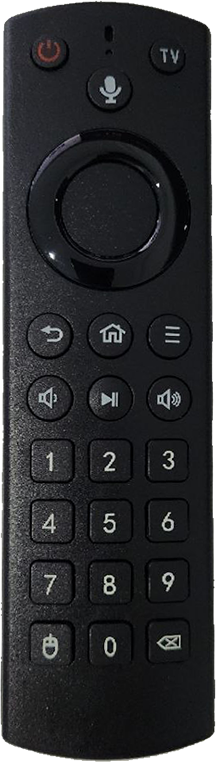
IPTV Remote
Controls your TV and IPTV Dashboard. Use this for navigating channels, menus, and basic TV operations.
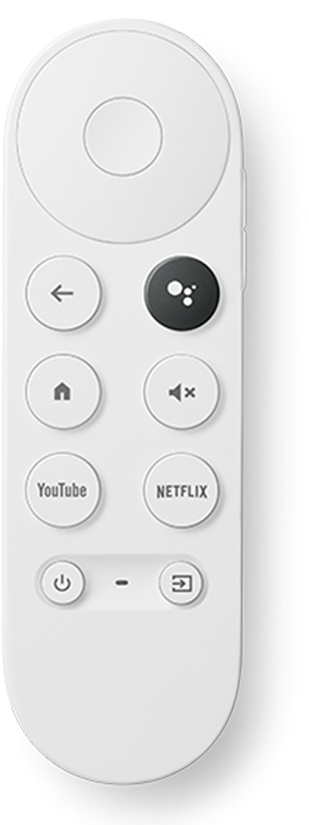
Chromecast Remote
Dedicated for Chromecast features. Use this when streaming content from your devices or browsing apps like Netflix.
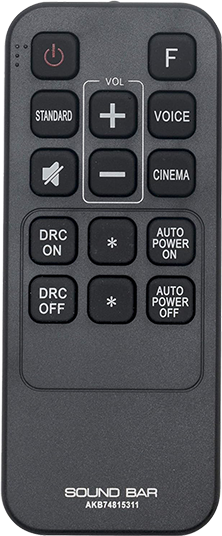
Soundbar Remote
Controls your soundbar settings including volume, bass, and audio modes for optimal sound experience.
2 Turning On and Off the TV
🔌 Quick Start
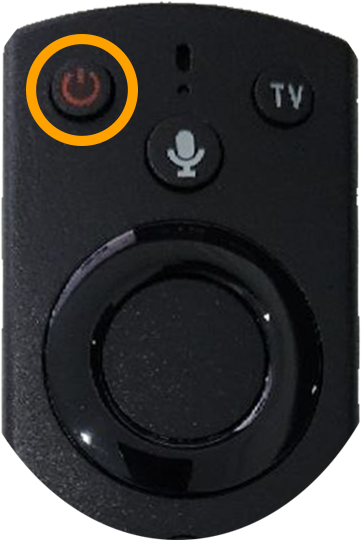
Locate the IPTV Remote and press the power button at the top. The TV will turn on and display the IPTV Dashboard.
3 Navigating the IPTV Dashboard
Navigation Controls
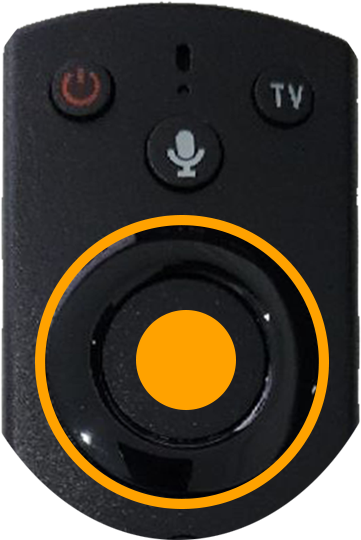
- Use the center round button on the IPTV Remote
- Press right or left to browse through tiles on the dashboard
- Press the center button to select and enter a tile
- Use the back button to return to the previous menu
4 Using the Cast Feature
Select CAST from Dashboard
▼- Use the IPTV Remote to navigate to the CAST tile
- Press the center button to select it
- A QR code will appear on your TV screen
Connect Your Device
▼- Open your phone or tablet camera
- Point it at the QR code displayed on the TV
- Wait for the connection to establish
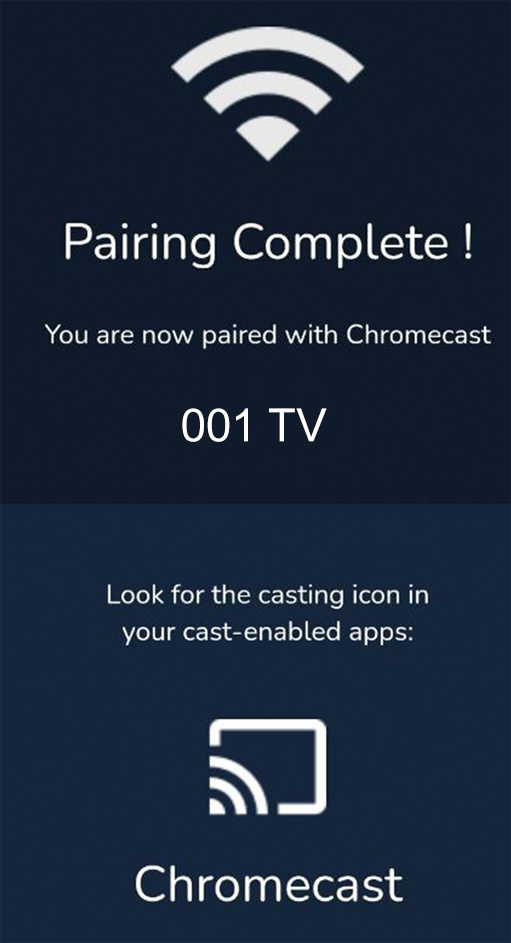
- You'll see a "Pairing Complete!" message on your device
✅ Connection Successful
Once paired, your device is ready to cast content to the TV. The TV name will appear as "001 TV" in your casting options.
Start Casting
▼- Open your favorite app on your device (YouTube, Prime Video, etc.)
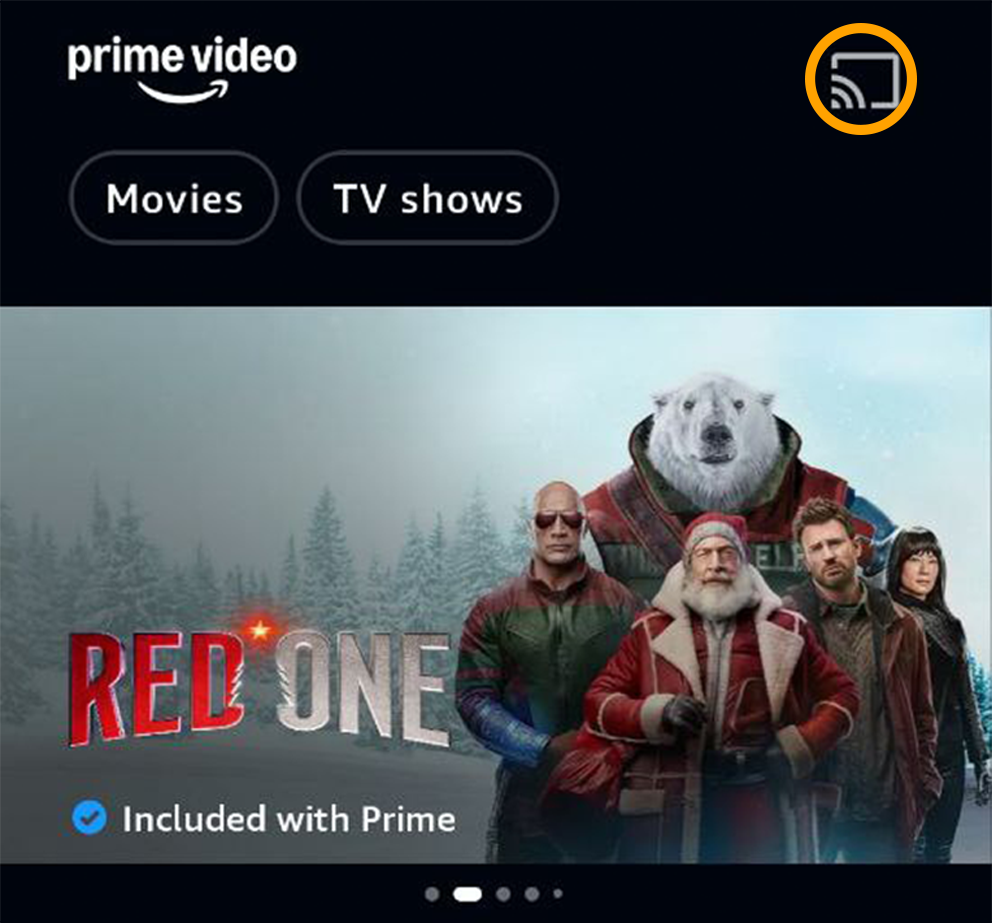
- Look for the Cast icon (📡) in the app
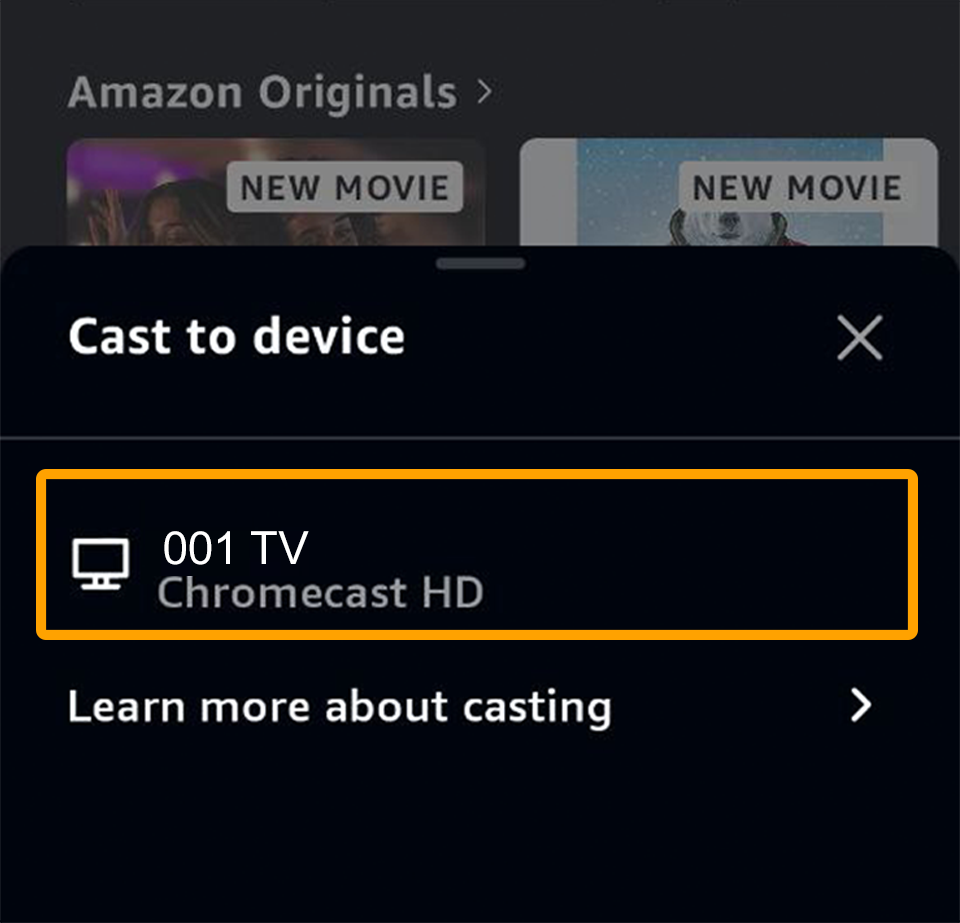
- Tap the Cast icon and select "ITM TV Chromecast HD"
- The TV will automatically switch to Chromecast and start playing your content
Step 1: Find Cast Icon
Step 2: Select Your TV
5 Netflix Casting
Connect as Usual
▼Follow the same connection steps as described in the "Using the Cast Feature" section above.
Sign In to Netflix
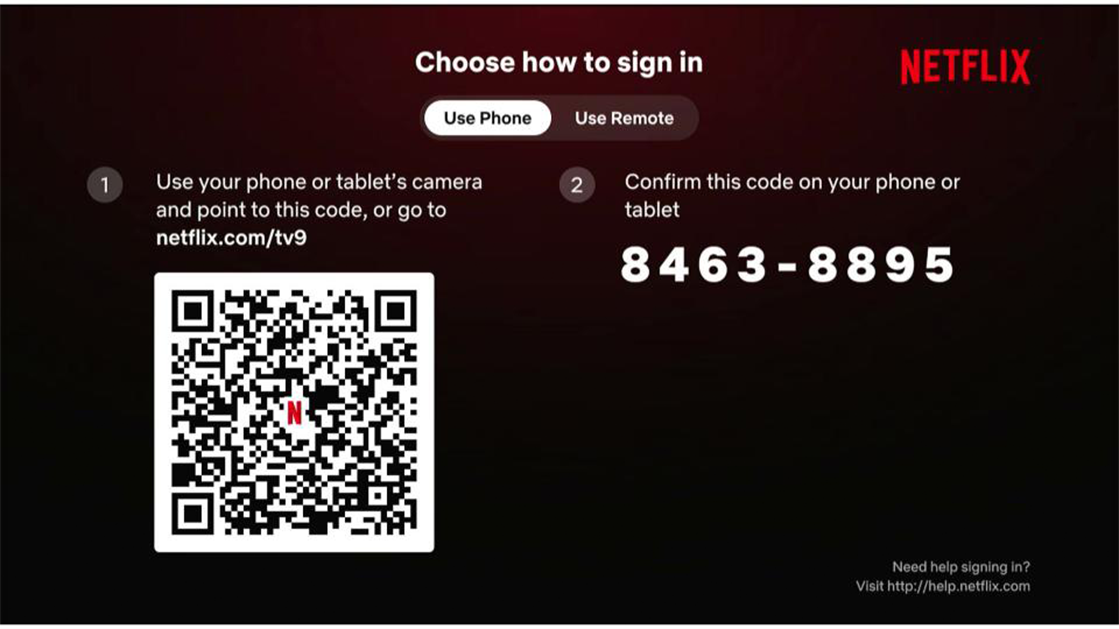
▼- Once Chromecast opens Netflix, a Login Page will appear on the TV
- Use the Chromecast Remote
- Press "Sign In" on the screen
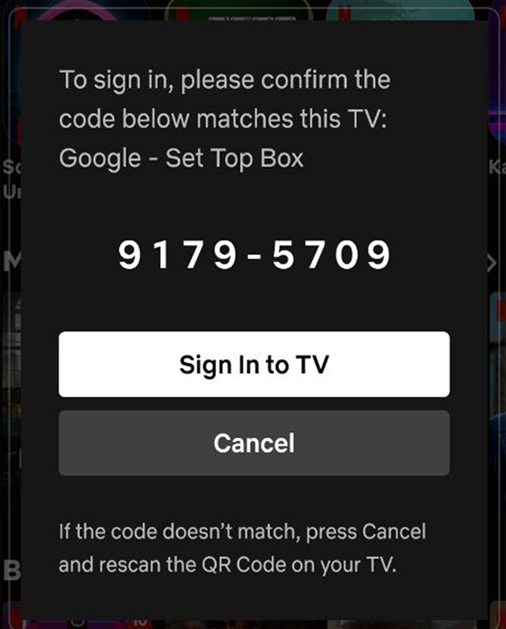
- Scan the Netflix Login QR Code displayed on the TV with your device
- Complete the login process on your device
📺 TV Screen
📱 Your Phone
💡 Two Ways to Control
After signing in, you can control Netflix either from your phone or directly using the Chromecast Remote.
Start Watching
▼- Browse and select content using your phone or the Chromecast Remote
- Enjoy your Netflix shows and movies on the big screen!
6 Returning to IPTV
⚠️ Important
To switch back to IPTV from Chromecast, you need to change the TV input source.
- Use the IPTV Remote
- Press the TV button repeatedly
- The TV will cycle through inputs: HDMI 1, HDMI 2, AV, etc.
- Stop when HDMI 1 is highlighted (this is the IPTV source)
- Wait a few seconds - the TV will automatically switch to IPTV
🔄 Troubleshooting
If IPTV doesn't appear:
- Try pressing the TV button again to confirm HDMI 1 is selected
- Wait up to 10 seconds for the system to switch
- If issues persist, contact reception (dial 0) or your island host
📞 Need Assistance?
Dial 0 for reception or contact your island host
We'll be happy to help!